# A check-out with the HelloReport AI Assistant, step by step
> How to use the HelloReport AI Assistant during a check-out: review suggestions from your photos, check meter readings and prepare the report summary.
Published 12 November 2026. Web version: https://helloreport.co.uk/blog/a-check-out-with-the-helloreport-ai-assistant-step-by-step
At a check-out, you still need to inspect each room and record what's changed since the start of the tenancy. The [HelloReport AI Assistant](https://helloreport.co.uk/blog/meet-the-helloreport-ai-assistant) can help with the writing, using your photos to suggest grades, descriptions and defects as you go.
If your team hasn't switched it on yet, an account owner or manager can do it in **Report Settings**, on the **AI Assistant** tab. The [launch post](https://helloreport.co.uk/blog/meet-the-helloreport-ai-assistant) has the steps.
## 1. Photograph each room and item as usual
Take your photos room by room and item by item, in the HelloReport app or on the web. In the app, tap **Analyse photos with AI** once you've added the photos for a room or item. On the web, the assistant starts automatically when you add them.
You can carry on to the next room while it works. You'll see **Suggestions ready** when it's finished.
## 2. Review the suggestions for each room
For each room or item, the assistant suggests:
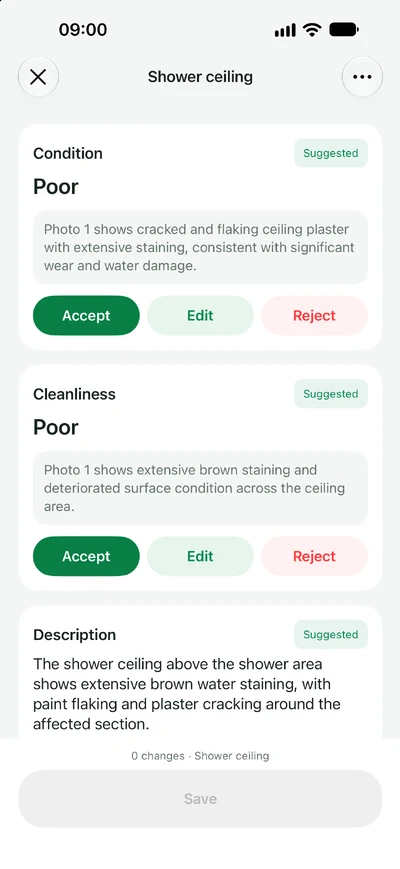
- **condition and cleanliness grades**, with a short explanation of what it found in the photos
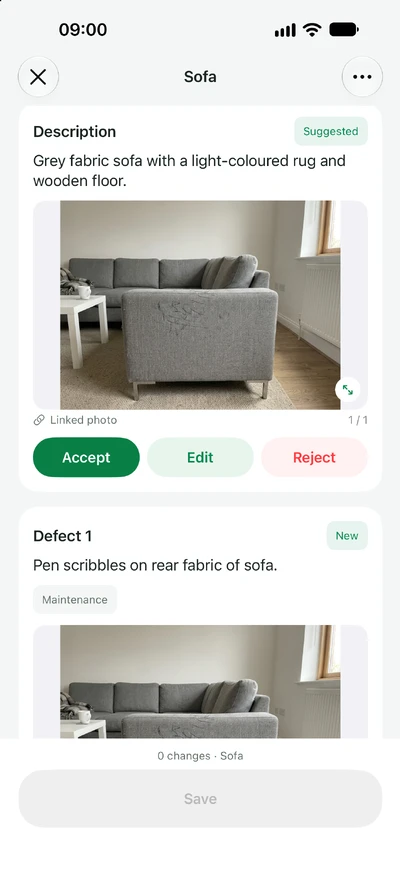
- **a description** written from the photos
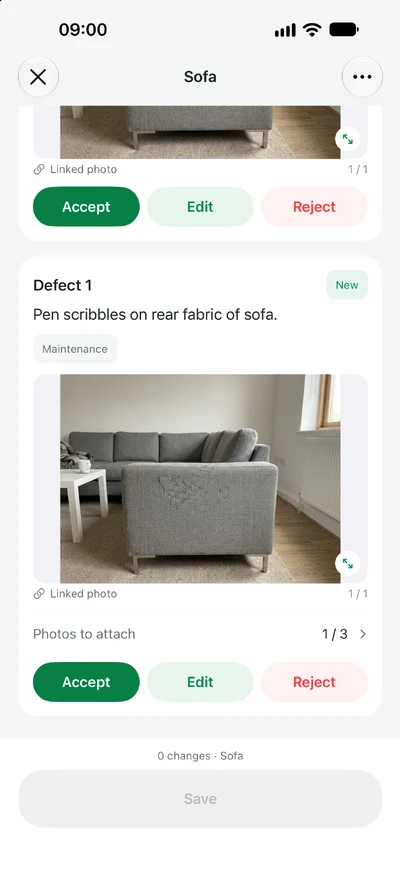
- **possible defects**, linked to the photos they were spotted in
Check each suggestion against the photos and what you saw at the property, then accept, edit or reject it. If you've already written a description, you can keep yours or use the suggested one. Accepting a suggested defect attaches the relevant photos too.
In the web editor, the previous record appears in grey beside each field. Use it to compare the suggestion with what was recorded at the start of the tenancy.
Select **Save and continue** when you've finished reviewing the room. Each room is saved separately, so you can close the report and come back to it later.
## 3. Read the meters
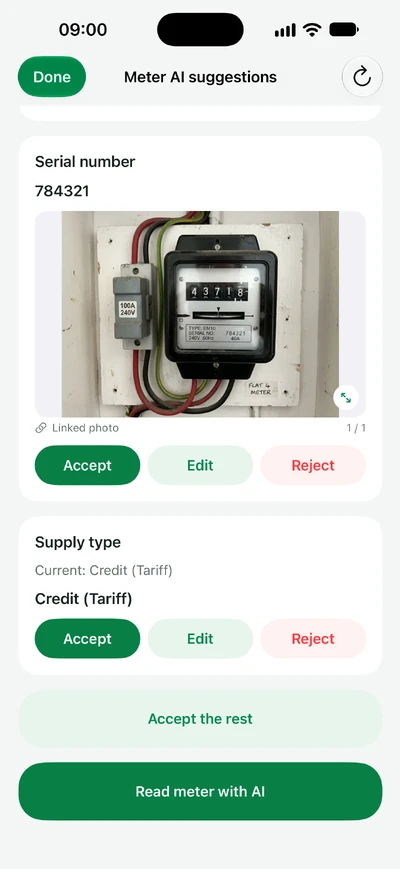
Choose the meter's energy type and photograph it. The assistant reads the **serial number, the reading and the meter type**. On Economy 7 meters, it reads both the day and night readings.
The assistant flags values as **Worth a quick look** if:
- it isn't sure about a reading or serial number
- the reading is lower than the one recorded at check-in
- the photo seems to show a different supply from the one you chose
You can use **Accept the rest** for the suggestions that aren't flagged. Check and confirm each flagged value separately.
Each suggested grade explains what the assistant found in the photos.The description is drafted from your photos, ready to accept or edit.Accepting a suggested defect attaches the photo it was spotted in.Check the serial number and supply type, then use Accept the rest.
### Already added your photos?
If you added photos before your team turned on the assistant, those rooms and meters show as **Not drafted** on the web. Select **Draft this area** in a room, or the draft button on the meters list, to get suggestions from those photos.
## 4. Prepare the summary
Once you've finished the rooms, keys, detectors and meters, open **Summary** and select **Summarise this report**. The assistant uses the report entries to draft an overview of what needs attention at check-out.
Read through it and make any changes you need. If you edit the report afterwards, HelloReport lets you know the summary may need updating. It only replaces the summary if you ask it to.
## 5. Check the report and sign off
Check the finished report before signing off, just as you would with any check-out.
When you open a signed-off report in HelloReport, grey notes under the grades, descriptions and defects show which came from the assistant and which you recorded yourself. For example, you might see *Assistant's suggestion, accepted* or *Assistant's draft, edited by the inspector*.
You'll still need clear photos and an accurate comparison with the property's condition at the start of the tenancy. Our guide to [what deposit adjudicators look for in check-out evidence](https://helloreport.co.uk/blog/what-deposit-adjudicators-look-for-in-check-out-evidence) covers this in more detail.
## 6. Let your tenants review the check-out
You can now send check-outs to your tenants for review before completing them. They can comment, add photos and sign, with their feedback included in the final PDF alongside your findings. This is available on the web and in the latest HelloReport app.
If you're already using HelloReport, we've left this switched off for your account. We didn't want to change how your team handles check-outs without your say-so. For new accounts, it's switched on from the start.
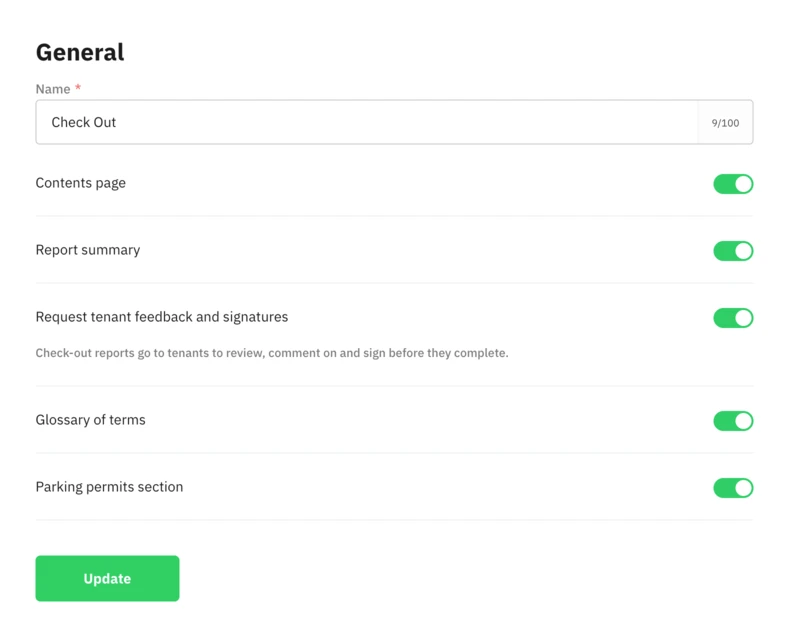
To turn it on, an account owner or manager can sign in to HelloReport on the web, open **Report Settings**, then the **Check Out** tab. Switch on **Request tenant feedback and signatures**, then select **Update**.
## Try it on your next check-out
The AI Assistant is included in your subscription. Make sure your team has the latest version of the HelloReport app before trying it. We'd like to hear how you get on, especially if a suggestion needs correcting.
If you'd like to see it first, [book a guided demo](https://helloreport.co.uk/book-a-demo). New to HelloReport? You can also [start a free trial](https://my.helloreport.co.uk/#/auth/register).