# Meet the HelloReport AI Assistant, included in your subscription
> Our new AI Assistant drafts grades, descriptions, defects and meter readings from your photos, and it's included in your HelloReport subscription.
Published 9 November 2026. Web version: https://helloreport.co.uk/blog/meet-the-helloreport-ai-assistant
There's plenty of typing involved in a property report, even when you've already photographed everything. Our new **HelloReport AI Assistant** can now use those photos to suggest descriptions, condition and cleanliness grades, defects and meter readings. You check the suggestions and decide what goes into your report.
**It's included in your HelloReport subscription**, with no extra charge, no credits to buy and no usage cap.
## What the AI Assistant does
The assistant works in check-in, check-out and inspection reports, on the web and in the HelloReport app on iPhone, iPad and Android.
### Drafts from your photos
Add photos to a room or an item, and the assistant gets to work while you carry on. When it's finished, you'll see **Suggestions ready** with:
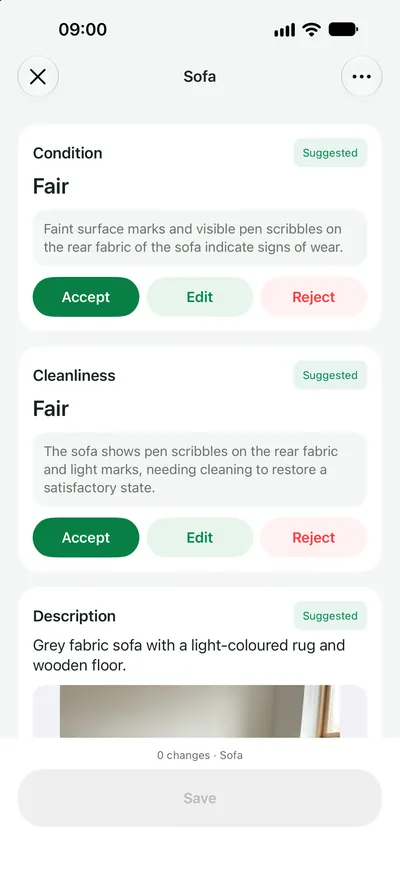
- **Condition and cleanliness grades**, each with a short reason
- **A description** drafted from what's in the photos
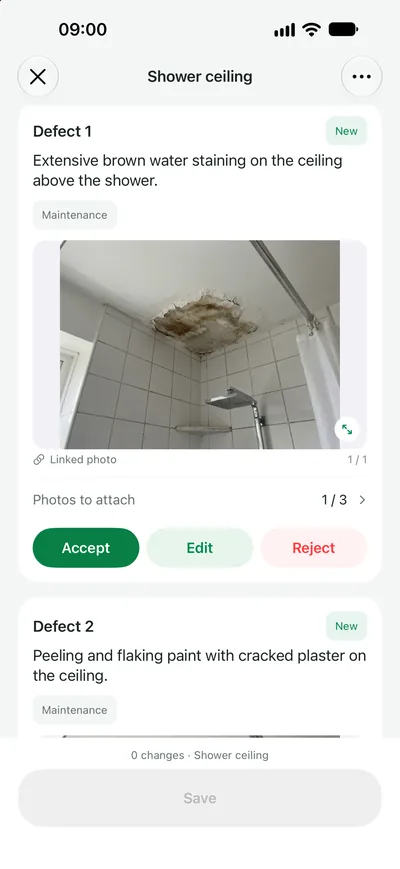
- **Suggested defects**, each linked to the photos it was spotted in
Before saving, accept, edit or reject each suggestion. If you've already written a description, you can keep it or replace it with the suggested version. Nothing changes in your report until you save.
my.helloreport.co.uk
On the web, add a photo, then accept or change each suggestion before you save.
### Meter readings from photos
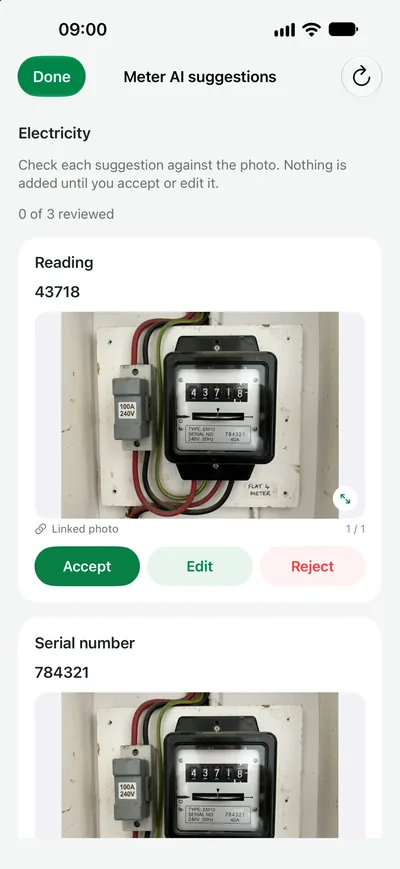
On check-ins and check-outs, photograph a meter and the assistant reads the **supply type, serial number and reading**, including day and night readings on Economy 7 meters. A reading that's lower than the one recorded at check-in is flagged for you to check. If there's already a value recorded, you choose whether to keep it or use the suggested reading.
### A summary for the top of the report
Check-in and check-out reports now have a **Summary** section. Select **Summarise this report** and the assistant writes a short overview from what's been recorded in the rooms, keys, detectors and meters. You can edit, add or remove any line. If the report changes afterwards, HelloReport lets you know the summary may need updating. Your edits are kept unless you choose to replace them.
### Reuse photos as defect evidence
When you raise a defect, you can now attach photos you've already taken for that room or item. There's no need to photograph the same thing again.
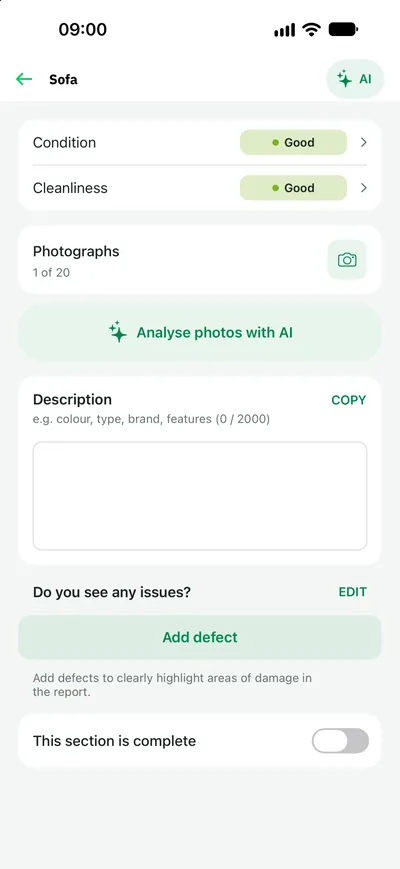
Add photos to a room or item, then tap Analyse photos with AI.Each suggestion waits for you to accept, edit or reject it.Suggested defects arrive with the photo they were spotted in.Readings and serial numbers are read from the meter photo, for you to check.
## You stay in control
Earlier this year we wrote about [using AI to support property reporting](https://helloreport.co.uk/blog/artificial-intelligence-ai-time-saver-or-accelerator-of-tenant-disputes). You'll still need to check the suggestions against what you've seen at the property. The assessor remains responsible for the finished report, and signed-off reports show which values came from the assistant and which were your own.
## A refreshed web report editor
We've also updated the web report editor for all teams, whether or not you use the AI Assistant. Each room, item and meter now has its own page, with navigation showing your progress and what's left to review. You can add and edit defects on the page and, on check-outs, compare each field with the check-in record.
## How to turn on the AI Assistant
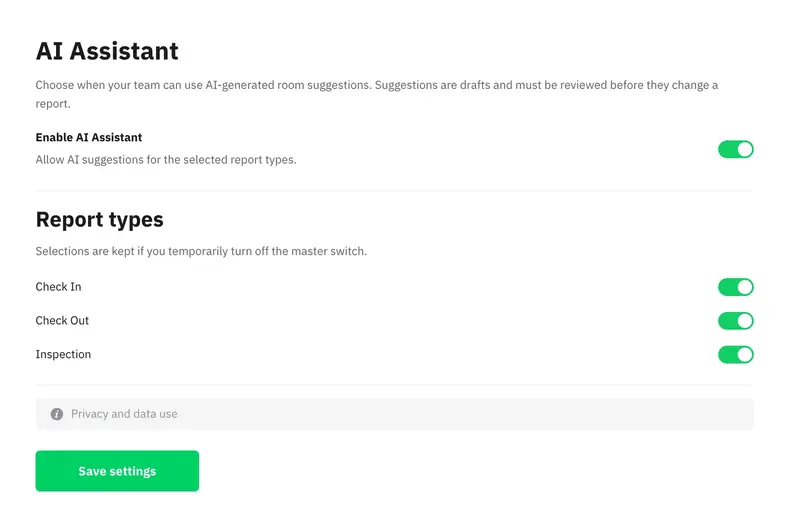
New teams have the AI Assistant switched on from day one. **For existing teams, it's off until you choose to turn it on.**
To turn it on, an account owner or manager needs to:
1. Sign in to HelloReport on the web and open the account menu.
2. Choose **Report Settings**, then the **AI Assistant** tab.
3. Switch on **Enable AI Assistant**.
4. Choose which report types to use it for: **Check In**, **Check Out** and **Inspection**.
5. Select **Save settings**.
Your team can start using it on their next report.
## Your data
When the AI Assistant is on, report photos and the relevant report details are sent to our AI provider to create suggestions. We use this data only to provide the feature, and it is not used to train shared AI models. The summaries it writes leave out the property address and the names of tenants, landlords and assessors.
## Try it today
If you're already a HelloReport customer, turn on the AI Assistant in **Report Settings**, make sure your team has the latest version of the HelloReport app, and try it on your next check-in. We'd love to hear what you think.
New to HelloReport? [Book a guided demo](https://helloreport.co.uk/book-a-demo) or [start your free trial](https://my.helloreport.co.uk/#/auth/register). The AI Assistant is included from the start.